
Manage News Feed Posts
A News Feed delivers a stream of timely, relevant content to Members on your website or within your mobile app. From within the Loyalty platform, you have full access to all posts, including posts made by Members, and system-generated posts based on Member actions (like completing a Challenge for example). From this screen, you can manage the post content, and interact with the post using common social media actions, such as like and share.
To view, edit, or engage with a News Feed post:
-
Select Communities from the top navigation bar, then select News Feed from the side navigation menu. The News Feeds screen is displayed.
-
Search for and select the desired News Feed (see Search for a News Feed for more information on the available search options). The News Feed Details screen is displayed, with the Posts tab displayed by default.
-
The Posts tab displays a timeline view of all posts in the News Feed, with the most recent post on top. Scroll down until you find the desired post, then perform the desired action:
-
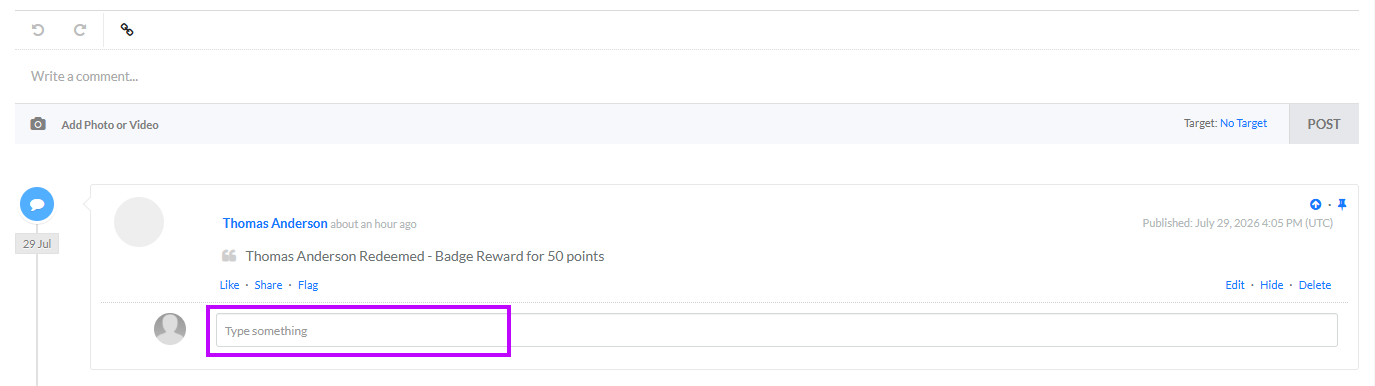
Comment: Type your comment into the reply field beneath the desired post, then press Enter. You can also reply to other comments.
-
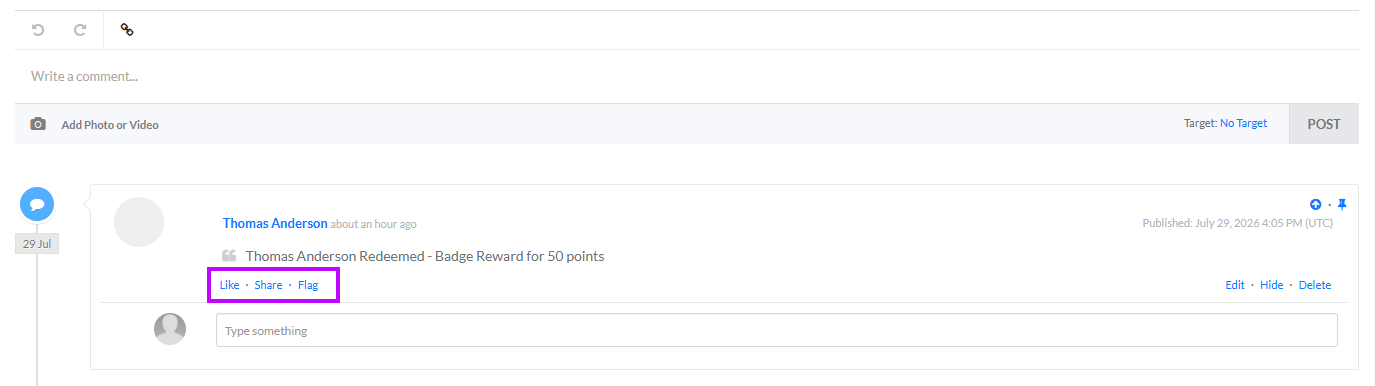
Like / Unlike: To like a post or a comment, click Like. Conversely, to remove a Like from a previously liked post or comment, click Unlike.
-
Share: To share a post, click Share.
-
Flag / Unflag: To flag an inappropriate post, click Flag, then select a reason. Flagged posts are removed from the News Feed. Conversely, to unflag a previously flagged post, click the flag reason, then select Unflag.
-
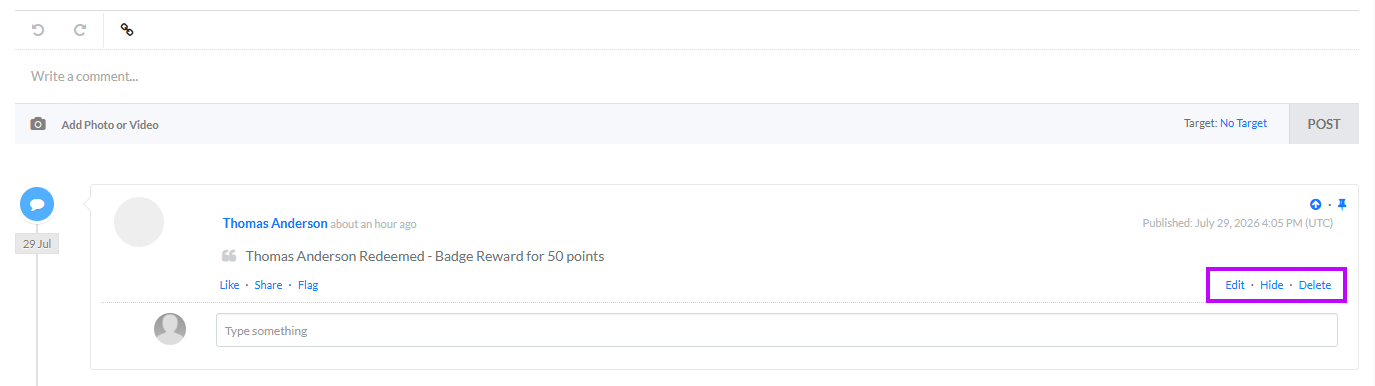
Edit: Click Edit to edit the post content, its targeted Loyalty asset, or its publication date.
-
Hide / Unhide: To remove a post or a comment from the News Feed without actually deleting it, click Hide. Conversely, to make a previously hidden post or comment visible again, click Unhide.
-
Delete: Click Delete to permanently delete a post or a comment. A confirmation dialog box is displayed; click Confirm.
-
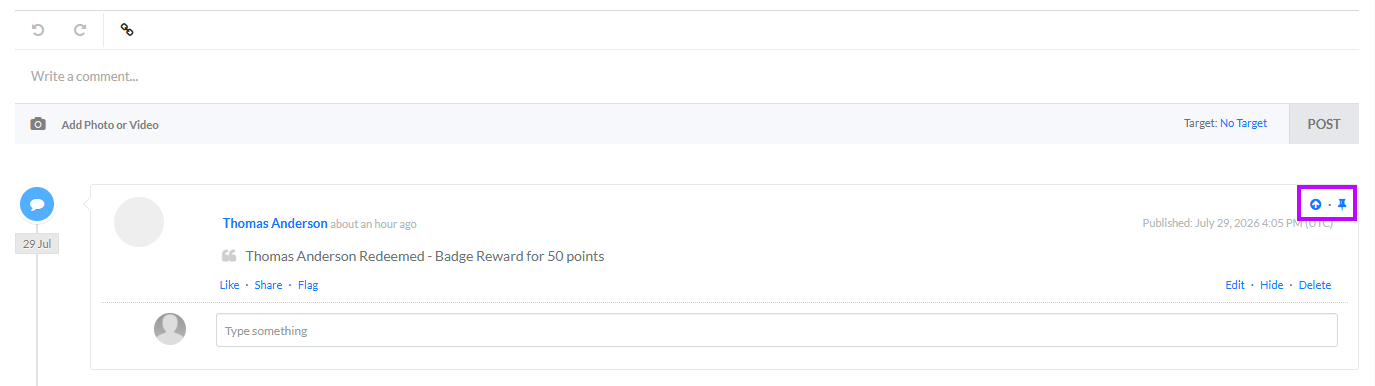
Bump: To move a post to the top of the News Feed, click the Bump icon. Note that you can't bump a post if it's currently pinned.
-
Pin / Unpin: To pin a post so it sticks to the top of the News Feed, click the Pin icon. Conversely, to unpin a previously pinned post, click the Unpin icon.
-
